How Lucas Turns His Drawings into 3D Prints
I like drawing almost as much as I like 3D printing. Sometimes I sketch a football, a basketball hoop, a rocket, or a funny character on paper. For a long time, my drawings stayed flat. Then I learned that I could turn some of them into real objects that I could hold.
That is the wow moment: a pencil drawing becomes a 3D model, and then the model becomes a print.
This is one of my favorite projects because it combines art, computers, and making things. It is also a great introduction to 3D printing for kids. You do not need to begin with a complicated machine or a huge design. A simple drawing can be enough.
The images in this guide are illustrative examples from Tinkercad and Instructables, not photographs of Lucas’s personal projects.
1. I start with a simple drawing
The best drawings for this project have clear shapes and bold lines. I usually start with a dark marker on white paper because it is easier for a computer program to recognize.
Good first ideas include:
- A name or initial
- A simple sports logo
- A football, basketball, or trophy
- A star, lightning bolt, or smiley face
- A simple animal or character
- A badge or keychain shape
Tiny details can make the process harder. If I draw ten thin lines close together, they might disappear when the drawing is converted into a 3D shape. Big shapes and strong outlines usually work better.
I also think about what I want the final object to be. Is it going to be a flat badge? A refrigerator magnet? A nameplate for my desk? A decoration for my sports shelf? Thinking about the finished object helps me decide how much detail to include.
2. I put the drawing on a computer
Next, I need to turn my paper drawing into a digital image. An adult can take a clear photograph with a phone or scan the page.
I try to make sure:
- The whole drawing is visible.
- The paper is lying flat.
- There are no large shadows across the page.
- The image is not blurry.
- The drawing has strong contrast.
A photo or scan is usually saved as a PNG or JPEG. These are useful image formats, but Tinkercad needs something different for this project: an SVG.
An SVG, or Scalable Vector Graphic, describes shapes and lines instead of storing the picture only as pixels. That means the design can be resized without becoming blurry. Tinkercad explains more about SVG files in its guide to importing and exporting SVG files.
3. I convert the picture into an SVG
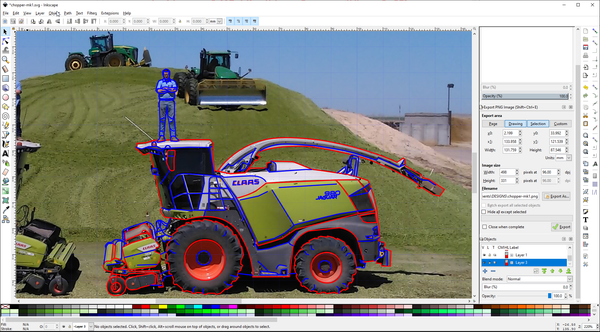
There are several ways to create an SVG. One option is to use a drawing program such as Inkscape. In Inkscape, I can import my picture and use a tracing tool to follow the dark lines.
The basic idea is:
- Import the scanned drawing.
- Trace the important shapes.
- Remove the original photograph or scan.
- Check that the remaining artwork is made from vector paths.
- Save the file as an SVG.
This part may require help from a parent, teacher, or another experienced user. The menus can look complicated at first, but the goal is simple: create a clean digital outline of the drawing.
The drawing does not have to look exactly the same as the original. Sometimes I simplify it. I might remove a tiny mark, make a line thicker, or turn a complicated picture into two or three large shapes.
That is part of the design process. A 3D printer cannot always reproduce every pencil mark, so I have to decide which parts of my drawing are most important.
4. I bring the drawing into Tinkercad
After I have an SVG, I open Tinkercad and create a new 3D design. Tinkercad is helpful for beginners because I can build with simple shapes, move objects around, and see the design from different angles.
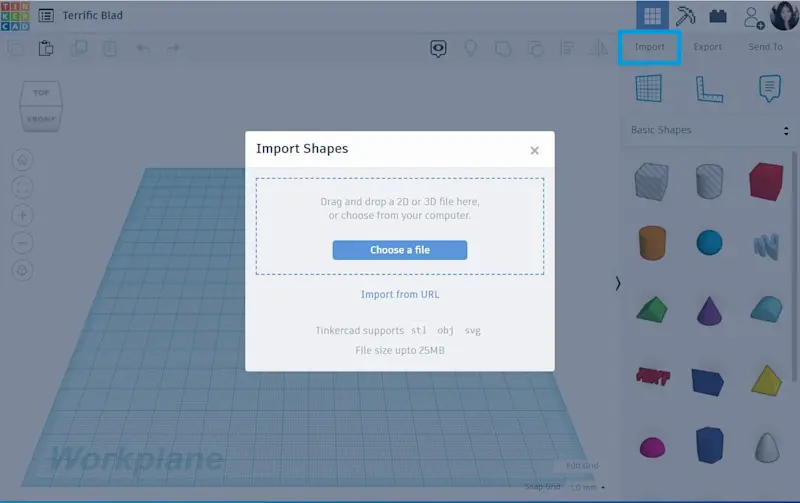
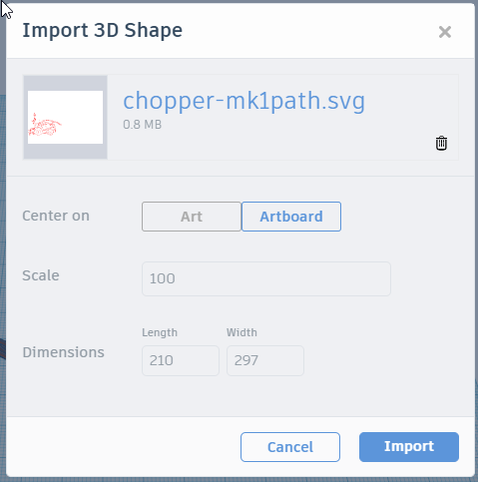
In the 3D design workspace, I click Import. Then I choose my SVG file and adjust the size if needed.
Tinkercad can turn closed SVG paths into an extruded 3D object. In other words, it takes my flat outline and gives it height. A drawing that was only a few lines on paper now has sides, a top, and a bottom.
For a first project, I might choose a width of about 50 to 80 millimeters and a height of a few millimeters. The exact measurements depend on the design and the printer. A parent or teacher can help check that the object will fit on the print bed.
5. I give the drawing different heights
This is where the drawing starts to feel truly 3D.
I can make the main shape a little thicker and add another part on top. For example, if I draw a basketball:
- The ball could be the base shape.
- The lines could be raised slightly above it.
- A name or number could sit on top.
- A small hole could turn it into a keychain.
I can also add basic Tinkercad shapes such as boxes, cylinders, and text. This lets me turn a drawing into something useful instead of printing it as a plain flat picture.
If I use several layers, I need to keep them aligned. Moving one layer accidentally can make the final design look crooked. I usually check the model from the top, front, and side before exporting it.
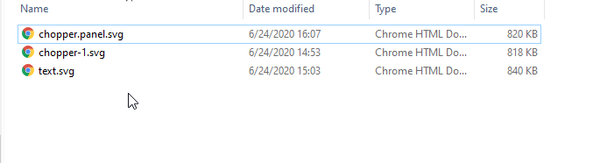
An instructable guide to 3D-printing SVG line art with Inkscape and Tinkercad explains how separate layers can be given different heights. It also discusses why line width matters when preparing artwork for a printer.
6. I check whether the design is printable
Before I export the model, I look for parts that might cause trouble.
I ask:
- Are any lines too thin?
- Are there tiny pieces that could break?
- Is the object connected to a base?
- Are there large unsupported sections?
- Will the design fit on the printer’s build plate?
- Are the corners too sharp?
A common desktop printer nozzle is around 0.4 millimeters wide. That does not mean every design must use exactly that measurement, but extremely thin lines may not appear correctly in the sliced file. Making important lines thicker can help.
I also remember that the printer itself is not a toy. A responsible adult should supervise the process, especially when the printer is hot or moving. The NIOSH guidance on safe 3D printing recommends controls such as training, ventilation, and keeping users away from hot and moving parts.
For younger kids, the safest role may be designing the model, watching from a safe distance, and handling the finished print only after an adult says it is ready.
7. I export, slice, and print
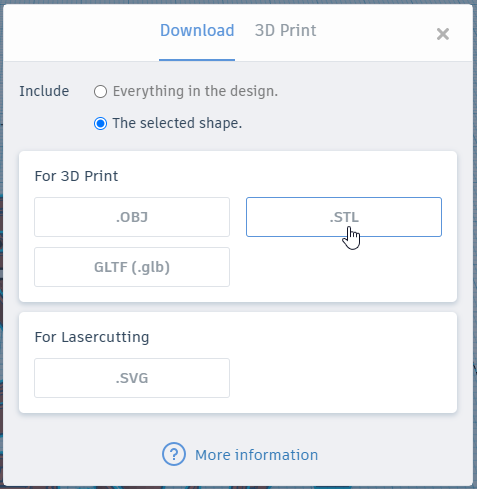
When the model looks good, I click Export in Tinkercad and choose STL. STL is a common file type for 3D printing.
The STL then goes into slicer software. The slicer turns the model into the instructions that the printer follows layer by layer. This is where the final size, layer height, infill, and support settings can be checked.
Sometimes the slicer shows a problem before printing. A line might be missing, a piece might be too small, or the object might not be sitting flat. That is useful because I can return to Tinkercad and fix the model before using filament.
Then comes my favorite part: pressing start and waiting for the first layer.
The printer does not produce the whole object at once. It builds one thin layer, then another, and another. Slowly, the shape from my notebook becomes something real.
What I like most about this project
Turning drawings into prints makes my ideas feel more useful. I can draw a sports badge and put it on my shelf. I can make a name tag for my equipment. I can create a little trophy, a game token, or a decoration for my room.
The best part is that mistakes are useful. If a line is too thin, I can make it thicker. If the object is too small, I can resize it. If the design needs more detail, I can add another layer.
That is why this is such good 3D printing kids fun. It is not only about watching a machine work. It is about learning how an idea moves through several stages:
paper drawing → digital outline → SVG → 3D model → sliced file → printed object
I start with a picture that exists only in my imagination. A few design steps later, I can hold it in my hand.
For more about Lucas and his creative projects, visit Lucas Gorgan. And if you try this activity yourself, start with a simple drawing, ask an adult for help with the printer, and enjoy the moment when your artwork steps off the page.