From STL to Print: The Engineering Behind Every 3D Print
A 3D printer can turn a digital design into a real object, but it does not understand an STL file the way a person understands a picture or a shape. Before the printer can begin, software must translate the model into thousands of precise movements.
That translation is the engineering pipeline from STL to print.
For beginners exploring 3D printing for kids, this process is one of the most useful ideas to understand. It explains why a model needs to be sliced, how supports and infill work, and why the same design can produce different results depending on its settings.
Lucas, who enjoys both 3D printing and sports, often thinks about this process like a playbook. The STL is the design of the play. The slicer creates the instructions. The printer follows each movement, one layer at a time.
What Is an STL File?
An STL file is one of the most common file types used in 3D printing. The letters originally referred to “stereolithography,” but today STL is generally understood as a file format that describes the outside surface of a three-dimensional object.
An STL does this by representing the surface with many small triangles. Each triangle has three corners, and together the triangles form a mesh around the model.
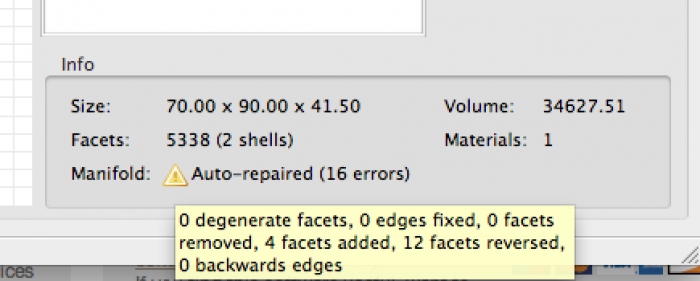
An STL usually describes:
- The shape of the model
- The position of each triangle
- The direction each triangle faces
It does not normally include:
- Nozzle temperature
- Print speed
- Layer height
- Infill percentage
- Support structures
- Printer movements
- Filament type
That distinction is important. An STL is more like a digital skin or surface model than a complete set of manufacturing instructions.
A useful beginner comparison is this:
The STL is the blueprint for the object’s shape. The slicer turns that blueprint into construction instructions.
For a model to slice correctly, its mesh should be “watertight,” meaning the surface has no unwanted gaps, holes, or confusing internal geometry. Some slicing programs can automatically repair common mesh problems. If the model is not properly closed, the slicer may not know which areas are inside, outside, solid, or empty.
You can explore the open-source Slic3r project to see how professional slicing software handles model repair, conversion, slicing, and G-code generation.
Step 1: Place and Orient the Model
After importing an STL into slicing software, the model appears on a virtual build plate. This is where the first engineering decision begins: orientation.
The same object can be printed in several different directions, and each orientation changes the result.
Orientation affects:
- How much support material is required
- Which surfaces are most visible
- How strong the final object will be
- How long the print will take
- Whether the object fits on the build plate
- How well the first layer adheres
For example, imagine printing a long sports-themed part, such as a miniature bat, equipment hook, or ball-shaped model. Printing it flat may reduce the need for supports, but it could also create weaker layers in a particular direction. Printing it upright might improve the appearance of some surfaces while increasing print time or making the object more likely to wobble.
This is where 3D printing becomes more than simply downloading a file and pressing “Print.” The user must make a manufacturing decision.
Step 2: The Slicer Cuts the Model into Layers
The word “slicing” describes exactly what the software does: it divides the 3D model into thin horizontal sections.
Imagine placing a stack of extremely thin transparent sheets through a model from bottom to top. Each sheet would show a different cross-section of the object. The slicer calculates those cross-sections and creates a plan for printing each one.
For every layer, the software determines:
- The outer shape of the layer
- The internal structure
- Any top or bottom surfaces
- Areas that need support
- Movements where the nozzle must travel without printing
A layer may be only a fraction of a millimeter thick. A taller object can therefore contain hundreds or thousands of individual layers.
Layer height creates a balance:
- Thinner layers can produce smoother curves and more detail.
- Thicker layers can reduce printing time.
- Very thin layers may increase detail but require more time and careful calibration.
A slicer such as Ultimaker Cura or an open-source tool such as Slic3r converts the model’s geometry into these layer-by-layer instructions.
Step 3: Choosing Walls, Infill, and Top Layers
Most FDM 3D-printed objects are not completely solid. Instead, they combine an outside shell with an internal structure.
Walls and perimeters
Walls, sometimes called perimeters, form the outside edges of the object. More walls generally create a stronger and more durable part, although they also use more material and increase print time.
For a decorative object, a small number of walls may be enough. For a part that will be handled frequently: such as a bracket, toy component, or sports accessory: additional walls may improve strength.
Infill
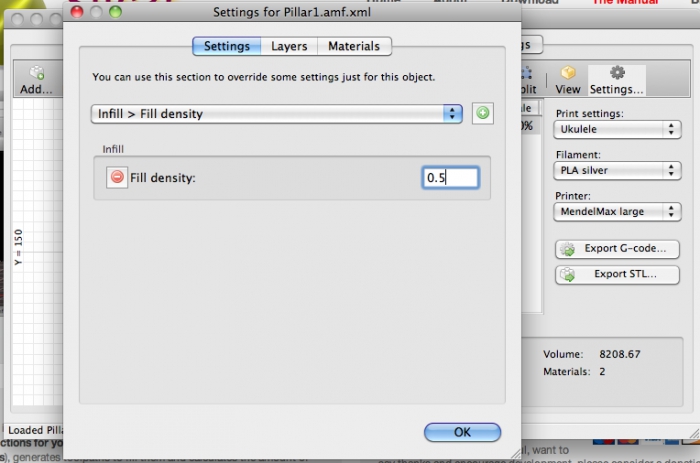
Infill is the internal pattern inside the printed object. Rather than filling the entire interior with plastic, the slicer creates a lighter structure that supports the outside walls and top surfaces.
Common infill patterns include:
- Grid
- Lines
- Triangles
- Honeycomb
- Gyroid
Infill density is usually expressed as a percentage. A low percentage creates a lighter object with more empty space. A higher percentage creates a heavier and often stronger object, but it takes longer and uses more filament.
For many beginner projects, a moderate infill setting is a practical starting point. However, strength does not depend on infill alone. Wall count, print orientation, material, layer bonding, and the shape of the part can all be just as important.
A useful engineering lesson for kids is that “more” is not always better. A solid object may be unnecessarily heavy, slow to print, and wasteful. Good design uses material where it contributes the most strength.
Step 4: Adding Supports Under Overhangs
A 3D printer deposits material onto a previous layer. It cannot normally print successfully into completely empty space.
When part of a model extends outward too far, the slicer may add supports. These temporary structures act like scaffolding under overhangs, bridges, or floating sections.
Supports are commonly needed for:
- Steep overhangs
- Arches
- Curved undersides
- Floating parts
- Models with branches or extended features
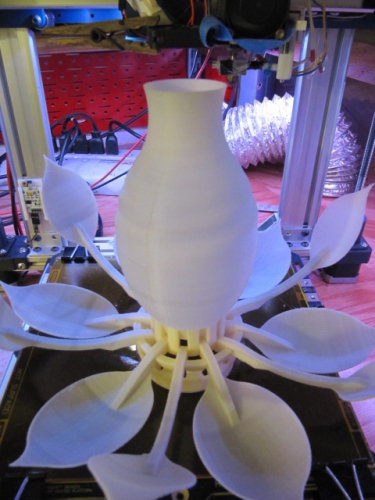
After printing, the supports are removed by hand or with a suitable tool. Some advanced printers can use dissolvable support materials, but many beginner printers use the same material for both the model and its supports.
Support settings involve trade-offs:
- More supports can improve reliability.
- Fewer supports can save material and reduce cleanup.
- Dense supports may be stronger but harder to remove.
- Poorly placed supports can leave marks on visible surfaces.
Good orientation can sometimes eliminate the need for supports entirely. That is why experienced users often rotate a model before changing many other settings.
Step 5: Creating the Toolpath
Once the slicer knows the layer shapes, walls, infill, and supports, it calculates the toolpath.
The toolpath is the precise route followed by the printer’s nozzle. It tells the machine where to move and when to deposit filament.
A typical layer may include:
- An outer perimeter
- Inner wall perimeters
- Infill lines
- Top or bottom skin
- Support material
- Travel moves between separate areas
A travel move is important because the nozzle may need to move from one part of the layer to another without extruding plastic. The slicer can control how that movement happens to reduce stringing and unwanted marks.
The toolpath also includes engineering values such as:
- Movement speed
- Extrusion amount
- Nozzle temperature
- Bed temperature
- Cooling behavior
- Retraction movements
- Position along the X, Y, and Z axes
The result is not just a drawing. It is a timed sequence of machine instructions.
Step 6: Exporting G-Code
After the model has been sliced, the software exports G-code. This is the file that the printer actually reads.
A simplified G-code command might look like:
G1 X10.5 Y12.2 E0.5
This type of command tells the printer to move to a particular position while extruding a specific amount of filament. Real G-code files contain many more commands for heating, positioning, speed control, fan operation, and extrusion.
The printer does not usually print directly from the STL. Instead, the pipeline looks like this:
STL model → slicer settings → layers and toolpaths → G-code → printer
Before sending the file to the printer, beginners should use the slicer’s preview mode. A layer preview can reveal:
- Missing sections
- Unexpected gaps
- Excessive supports
- Poor first-layer coverage
- Incorrect orientation
- Strange travel movements
Previewing is one of the easiest ways to catch a problem before using filament and time.
A Beginner’s Engineering Checklist
For a simple project in a 3D printing hobby, this checklist can help:
- Inspect the model. Is the STL complete and properly shaped?
- Choose the orientation. Which direction needs the least support?
- Select a layer height. Do you need detail, speed, or a balance?
- Set walls and infill. What level of strength does the part require?
- Check supports. Are they necessary, and can they be reduced?
- Preview the toolpath. Does every layer look correct?
- Confirm material settings. Are the temperature and filament profile appropriate?
- Watch the first layer. Good bed adhesion is essential for a successful print.
Children should use 3D printers with adult supervision. Hot nozzles, heated beds, moving parts, and tools can cause injuries. The engineering is exciting, but safe operation comes first.
Why This Pipeline Matters
The journey from STL to print shows how software and hardware work together. The model provides geometry. The slicer makes decisions about layers, supports, infill, and movement. G-code communicates those decisions to the printer. The machine then builds the object one carefully planned layer at a time.
That is what makes 3D printing such a valuable learning activity. It combines design, mathematics, computer science, materials, and problem-solving in one hands-on process.
For Lucas, a sports-inspired project might begin as a simple idea and end as a physical object he can hold, test, improve, and redesign. That cycle: design, print, evaluate, and try again: is at the heart of many rewarding 3D printing hobbies for kids.
For more articles in this series, visit the Lucas Gorgan blog.