How Lucas Designs His Own 3D Models: Engineering for Beginners
Lucas is nine years old, enjoys sports, and loves 3D printing. One of the most exciting parts of his hobby is not pressing “Print.” It is creating something that did not exist before.
A model can begin as a rough sketch, a sports idea, or a small problem that needs solving. Maybe Lucas wants to design a better way to organize game pieces, a custom name tag for his equipment bag, or a simple part for a small machine. The finished object may look simple, but the thinking behind it is engineering.
This is the basic idea behind 3D printing for kids: start with an idea, turn it into shapes, make thoughtful design choices, and improve the result through testing.
What does it mean to design a 3D model?
A 3D model is a digital description of an object. It tells the computer how wide, tall, and deep the object should be.
When Lucas designs, he does not begin by trying to draw every detail at once. He breaks the object into familiar shapes:
- Boxes become plates, stands, and containers.
- Cylinders become wheels, pins, and handles.
- Spheres become balls, knobs, and rounded features.
- Holes remove material where another part needs to fit.
- Text adds labels, names, or numbers.
This approach is similar to building with blocks. A complicated object is often just a collection of simple forms arranged carefully.
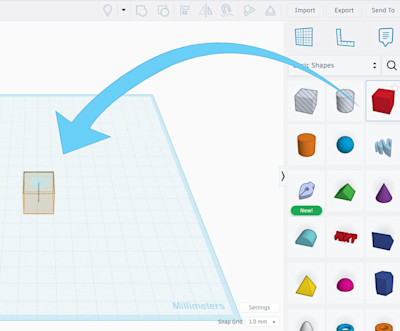
For beginners, a browser-based tool such as Tinkercad is a practical place to start. Autodesk describes Tinkercad as a free web app for 3D design, electronics, and coding. Its official learning center includes guided lessons on placing, moving, sizing, aligning, grouping, and cutting shapes.
Step 1: Start with a problem, not a complicated shape
Lucas’s first question is simple:
What should this model do?
That question changes the design process. Instead of randomly combining shapes, he has a purpose.
For example, imagine Lucas wants to design a small sports bag tag. He might decide that the tag must:
- Show his name clearly.
- Have a hole for a key ring.
- Be strong enough to handle everyday use.
- Fit inside a specific size limit.
- Print without needing complicated supports.
These requirements are called design constraints. A constraint is a rule that the object must follow.
Engineers use constraints all the time. A bridge must support weight. A wheel must rotate. A phone stand must hold a phone at a useful angle. A sports accessory must fit the equipment it is designed for.
For kids, this is where 3D printing becomes more than a craft. It becomes a way to practice problem-solving.
Step 2: Sketch the idea before opening the software
Before Lucas opens CAD software, he can draw the idea on paper.
A useful beginner sketch does not need to be artistic. It should answer a few practical questions:
- What will the object look like from above?
- How wide and long should it be?
- How thick should it be?
- Where will holes, handles, or connection points go?
- Which parts need to be rounded?
For the sports bag tag, Lucas might draw a rectangle with rounded corners, raised letters, and a circular hole near the top. He can write approximate measurements beside the sketch.
This step develops spatial reasoning: the ability to imagine how a flat drawing becomes a three-dimensional object. It also helps prevent a common beginner mistake: starting in software without knowing what the model is supposed to do.
Step 3: Build the main shape
Once the idea is clear, Lucas creates the largest and simplest part first.
In Tinkercad, he might:
- Drag a box onto the workplane.
- Set its length, width, and height.
- Add a cylinder for the hole.
- Turn the cylinder into a “hole.”
- Position it through the tag.
- Group the shapes to create the finished form.
This introduces an important CAD concept: adding material and removing material.
A solid box adds material. A hole removes material. A rounded edge changes the shape without changing its overall purpose. With a few operations, a beginner can create useful objects.
The goal is not to use every tool. Lucas focuses on the smallest number of tools needed to make the model work.
Step 4: Add measurements and design for printing
A model can look correct on screen and still fail when printed. That is why measurements matter.
For a typical beginner FDM printer using a 0.4 mm nozzle, a useful starting point is:
- Around 1.2 to 1.6 mm for general-purpose walls.
- At least 2 mm for parts that need extra strength.
- Around 0.2 to 0.4 mm of clearance for parts that must slide or fit together.
- Overhangs near or below 45 degrees when possible if the goal is to avoid supports.
These are starting points, not universal laws. Every printer, filament, and slicer behaves differently. Lucas can print a small test piece before committing to a larger design.
For instance, if he designs a slot for a strap, he should measure the strap first. If the strap is 20 mm wide, the opening should not be exactly 20 mm. The printer needs a little clearance, and the material may have slightly rough edges.
This is engineering thinking: measure the real object, predict how the printed part will behave, and leave enough room for reality.
Step 5: Keep the design easy to print
Beginners often try to make models too complicated. Lucas takes the opposite approach: he looks for ways to simplify the print.
A model is usually easier to print when:
- Its largest flat surface sits on the print bed.
- It does not contain long, unsupported overhangs.
- Thin decorative details are not too fragile.
- Separate parts are used when one large part would require many supports.
- The model can be printed in a reasonable amount of time.
This is especially useful for sports-related designs. A small stand, scoreboard token, equipment label, or practice-game accessory does not need to look complex to be useful.
A simple model that prints successfully teaches more than an ambitious model that never leaves the screen.

Step 6: Export, slice, and print
When Lucas is happy with the digital model, he exports it as an STL file. STL is a common format for transferring a 3D model from CAD software to a slicer.
The workflow looks like this:
- Design the object in Tinkercad or another CAD tool.
- Export the model as an STL file.
- Open the STL in slicer software.
- Choose settings such as layer height, infill, and supports.
- Generate the printer instructions, usually called G-code.
- Print the object while watching the first layers carefully.
The slicer is important because the printer cannot directly understand the original CAD design. The slicer converts the model into thousands of movement and temperature instructions.
For a first project, Lucas might choose a thicker layer height for a faster draft. If the object fits correctly, he can print a second version with finer layers or additional detail.
The most important step: test and improve
The first print is not always the final print.
Maybe the name is difficult to read. Perhaps the hole is too small. The edges may feel sharp, or the object may be thicker than necessary. These are not failures. They are information.
Lucas can write down what happened:
- What worked?
- What broke?
- What did not fit?
- Which measurement should change?
- Could the model be printed in a different orientation?
Then he returns to the digital file and changes one or two things.
Changing only a few variables makes it easier to understand cause and effect. If Lucas changes the hole diameter, wall thickness, and overall size all at once, he may not know which change solved the problem. Engineers often improve designs through controlled iterations like this.
A beginner project: design a custom sports token
Here is a simple project Lucas: or any young maker: can try.
Design a small token for a family sports game or practice challenge.
Requirements
- A circular body about 35 mm wide.
- A thickness of 3 mm.
- A raised number or letter.
- A shallow groove or symbol on the top.
- Rounded edges where possible.
- No unsupported features that require complicated supports.
Engineering questions
Before printing, ask:
- Is the token thick enough to handle?
- Is the text large enough to read?
- Will the raised design stick out far enough?
- Can the token be printed flat on the bed?
- Does the design need to be symmetrical?
This project is small, quick, and connected to sports. It also introduces important design ideas: dimensions, surface details, strength, print orientation, and testing.
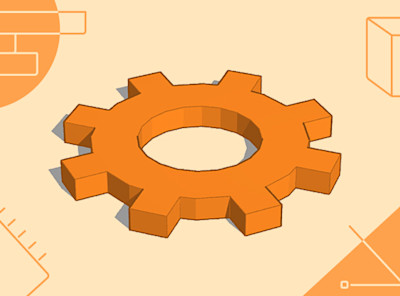
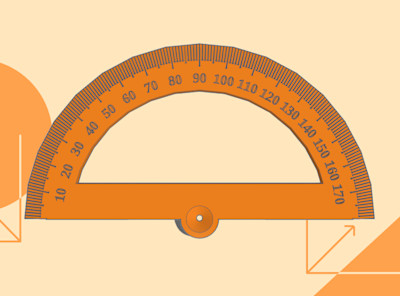
For more beginner project inspiration, the official Tinkercad project library includes models such as gears, key rings, rulers, measuring tools, and other practical objects.
Why this is a valuable hobby for kids
3D printing hobbies for kids combine creativity with practical thinking. Lucas gets to imagine an object, build it digitally, and hold the result in his hands. Along the way, he practices measurement, geometry, planning, patience, and revision.
The process also makes kids fun feel productive without turning every project into a lesson. A custom sports token can be enjoyable to design while quietly teaching proportions and tolerances. A name tag can introduce grouping and alignment. A small gear can demonstrate rotation and fit.
The best place to begin is with one clear idea and a simple shape. Lucas does not need advanced engineering software to start thinking like an engineer. He needs curiosity, a measuring tool, and the willingness to print, test, and try again.
For more stories and practical projects about Lucas’s 3D printing journey, visit the Lucas Gorgan blog.